
Cast a Magnet Base Displays, Income and Floor 2
Last updated:
Display treasures at your base to earn visitor Cash while keeping your finds. Manage individual pedestals, update your display after valuable catches, and expand when you need more slots.
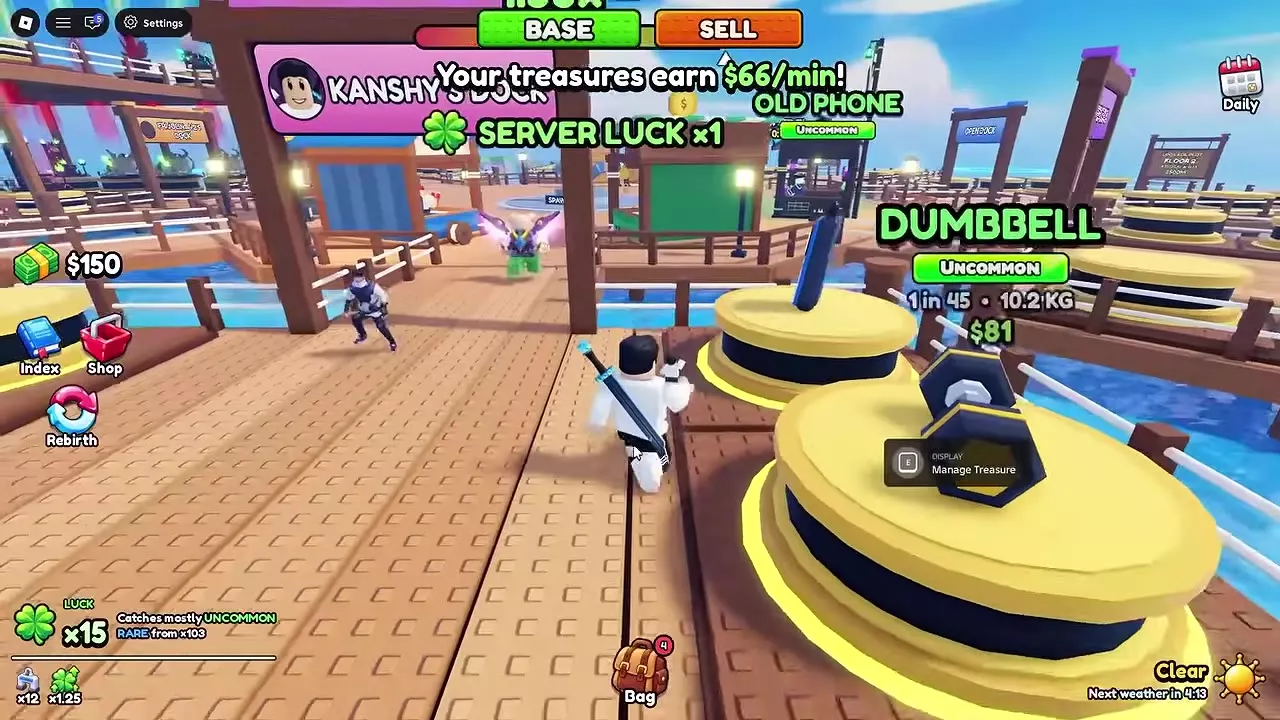
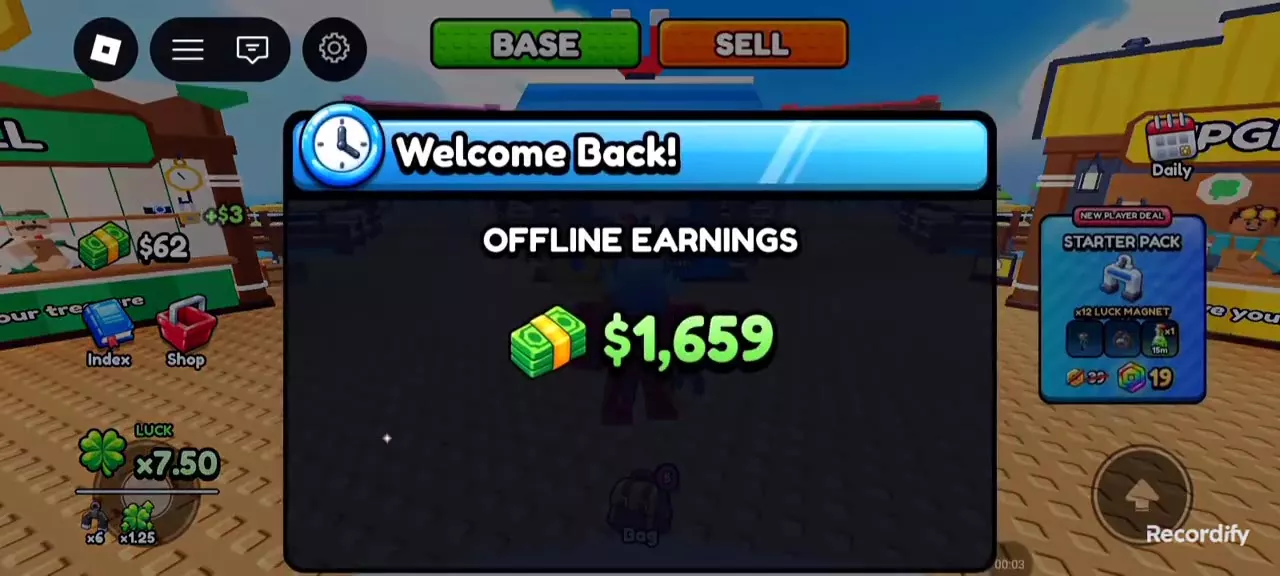
Open Bag → Treasures → Display Best to arrange your treasures, or place one through Display or an empty pedestal’s Place Treasure menu. Use Manage Treasure to Swap an exhibit or confirm Remove to return it to your Bag. Your treasures earn shows the combined income rate; a + amount after an update shows the increase. Floor 2 costs 500,000,000 Cash and adds eight display slots. Returning to the game opens a Welcome Back popup with Offline Earnings.
Display Slots and Visitor Income
Your initial base has eight display slots. Place treasures on its pedestals to attract visitors who pay Cash. You keep the displayed treasures, and the display continues earning passive Cash while you fish or perform other activities.
Have a treasure in your Bag and an available pedestal before adding an exhibit. If every pedestal is occupied, replace an existing exhibit or update the arrangement with Display Best.
Display Best and Individual Placement
Use Display Best
- Open Bag and select Treasures.
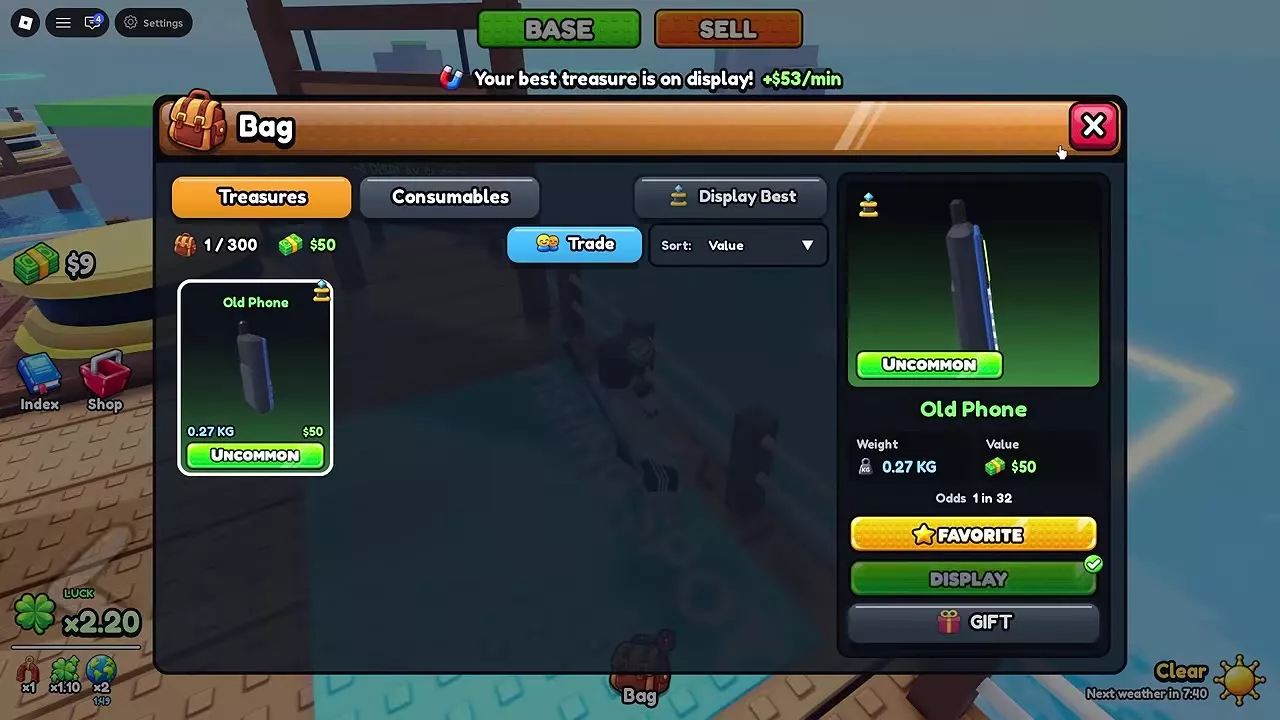
- Select Display Best to arrange treasures on your available pedestals.
- Check the update message for the number displayed and any income increase.
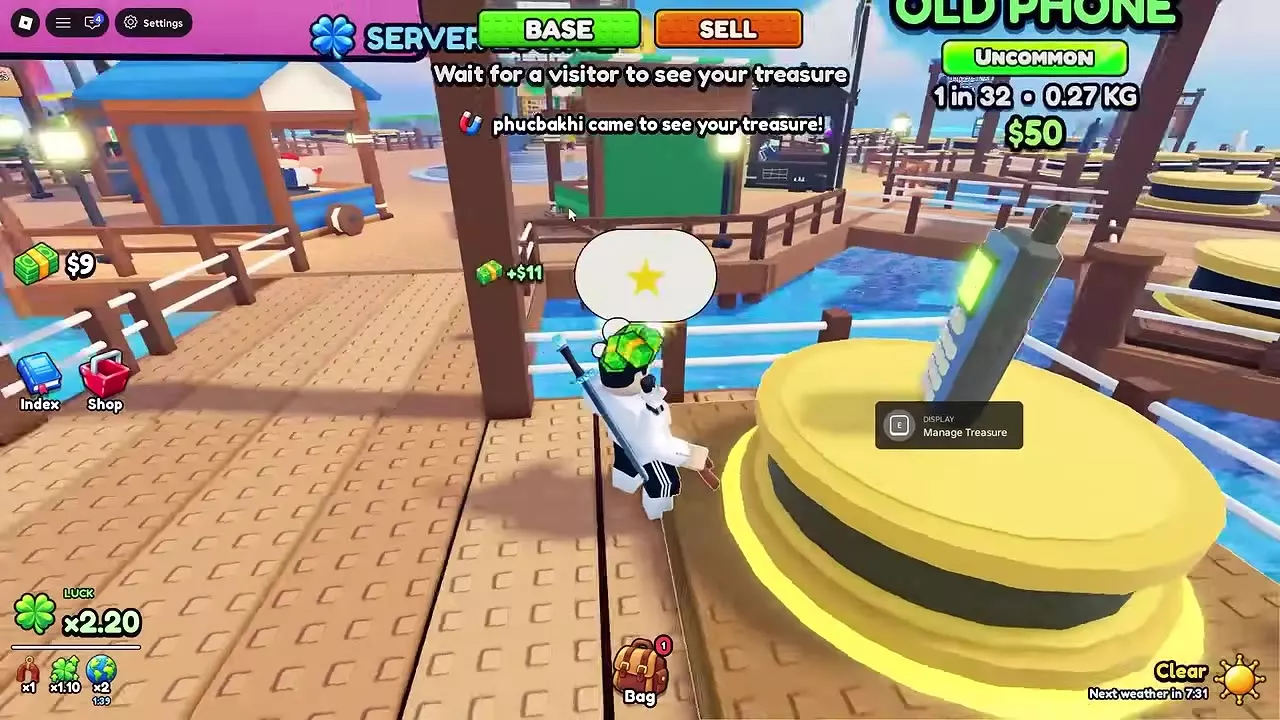
- Return to the pedestals to see your exhibits. During the Old Phone tutorial, wait for a visitor after placing it.
Opening Bag alone does not place the tutorial treasure. Select Display Best to complete that action.
Display Best works before you fill all eight slots, so start earning with the treasures you already own. Use it again after obtaining valuable catches or treasure rewards. When your best treasures are already displayed, it returns an already-displayed message rather than another income increase.
Place a particular treasure
- From Bag: select a treasure under Treasures, then choose Display.
- At an empty pedestal: interact with Place Treasure, then select an item in Pick a Treasure.
Displayed items receive a pedestal marker in Bag, and their Display action has a check mark. The treasure also appears on its pedestal. An occupied pedestal offers Manage Treasure.
For manual selection, use Sort: Value to compare the individuals you own. Use Display or Swap when you want a particular item on a particular pedestal.
Swap or Remove a Treasure
Swap an exhibit
- Approach the occupied pedestal you want to change.
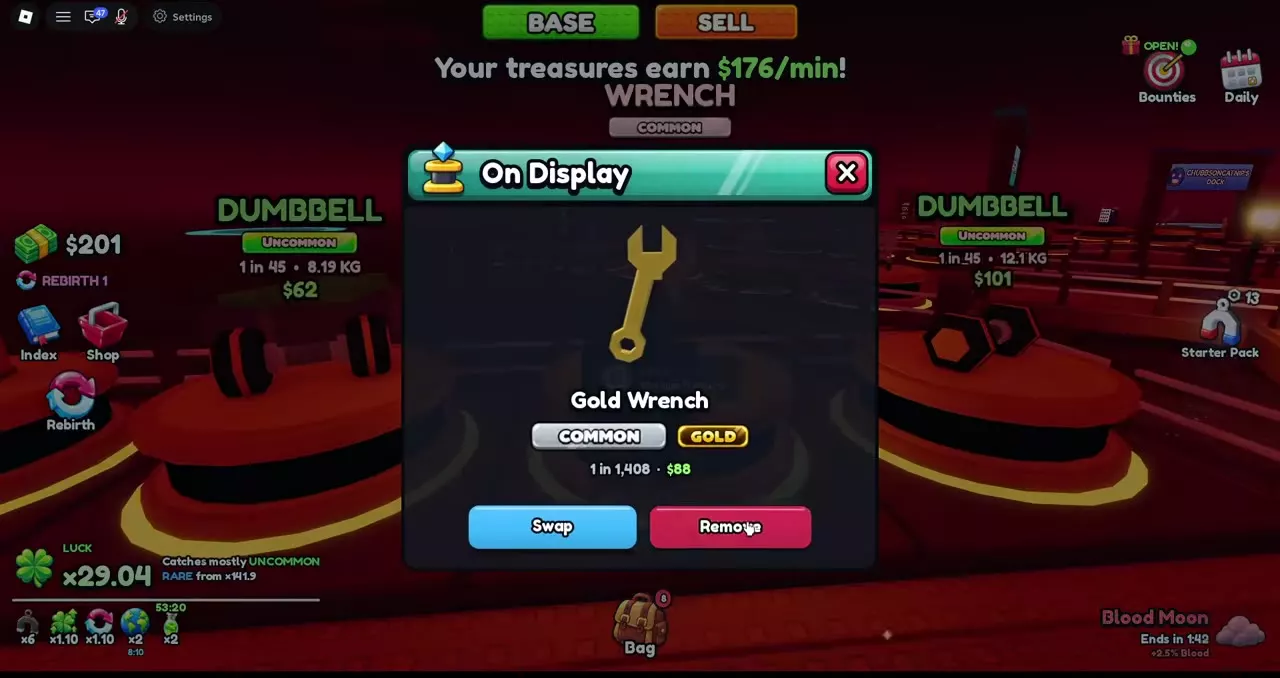
- Open Manage Treasure to view its On Display panel.
- Select Swap.
- Choose the replacement in that pedestal’s Pick a Treasure list.
- Check the on-display confirmation and the new treasure on the pedestal.
Repeat this at each target pedestal when replacing several exhibits manually.
Return an exhibit to Bag
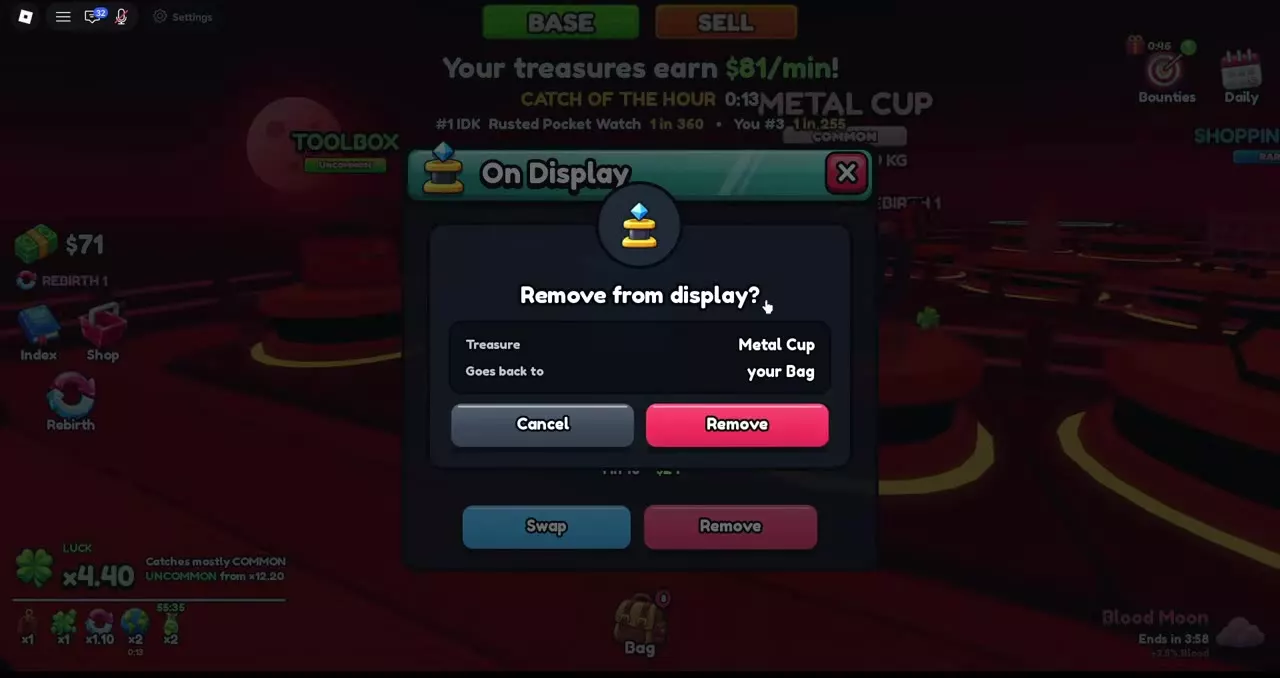
- Open Manage Treasure on its pedestal.
- Select Remove.
- Read the treasure name in the confirmation dialog, then select Remove again.
The confirmation reads Returned to your Bag, and the empty pedestal offers Place Treasure again.
Displayed treasures remain counted in Bag and are protected from sale. To sell one, remove it from display first and clear its Favorite status if it is also favorited. See Bag and Favorite controls for managing that protection.
Buy Floor 2
Floor 2 costs 500,000,000 Cash, shown as $500M, and adds eight display slots.
- Go to the end of your base dock, near Fishing Spot.
- Approach the Upgrade Plot sign.
- With 500,000,000 Cash available, use E: Buy Floor 2.
The expansion lets you display more treasures at the same time. Use your initial eight positions before investing in additional capacity.

Read Income Rates and Increases
| Display | Meaning |
|---|---|
| Visitor Cash payment | One payment |
| + amount after an update | Income-rate increase |
| Your treasures earn | Combined display rate |
| /min | Cash per minute |
| /day | Cash per day |
Read the unit alongside each amount. A visitor’s payment is a single Cash amount; the update message and total banner describe rates.
Old Phone tutorial
Displaying a 0.27 kg Old Phone worth 50 Cash produced a +53 Cash/min update. A visitor then paid 11 Cash. These amounts describe different things: the first is the display-rate increase for that tutorial setup, and the second is one visitor payment.
Check the total after a change
An early Display Best update raised a three-treasure setup from 44 to 66 Cash/min, with a +22 Cash/min message. The new total was 66 Cash/min; the 22 Cash/min was already included in it.
For a daily-rate example, replacing an 8.25 kg Dumbbell worth 62 Cash with a 15.0 kg Bicycle worth 491 Cash raised that setup’s combined display rate from 424,800 to 531,360 Cash/day. Those totals belong to the complete arrangement before and after the swap, rather than a fixed income assigned to every Dumbbell or Bicycle.
Offline Earnings
When you return after being offline, read Offline Earnings in the Welcome Back popup. This is the Cash amount reported for that return session.
Keep it separate from the online Your treasures earn banner: the popup gives an earnings amount, while the banner gives a rate per minute or per day.
Choose Treasures to Keep
Fill empty pedestals, then update your arrangement as better treasures arrive. Compare each individual’s Value, weight and mutation when choosing manually.
- Use sell-or-display decisions to choose between recurring income and Cash for an immediate purchase.
- Compare treasure value examples with their weight and form conditions.
- Follow the money-making route to combine displays, fishing, rewards and sales toward your next upgrade.